FlyConverter 1.2
 FlyConverter will convert and optionally edit your images automatically at a time that is most convenient for you
For example, FlyConverter can select all uncompressed TIF files and convert them to a Group 4 compressed TIFs every hour OR convert JPG images larger than 640 x 480 pixels every day, week and so on.
FlyConverter will convert and optionally edit your images automatically at a time that is most convenient for you
For example, FlyConverter can select all uncompressed TIF files and convert them to a Group 4 compressed TIFs every hour OR convert JPG images larger than 640 x 480 pixels every day, week and so on.
FlyConverter will convert and optionally edit your images automatically at a time that is most convenient for you
For example, FlyConverter can select all uncompressed TIF files and convert them to a Group 4 compressed TIFs every hour OR convert JPG images larger than 640 x 480 pixels every day, week and so on.
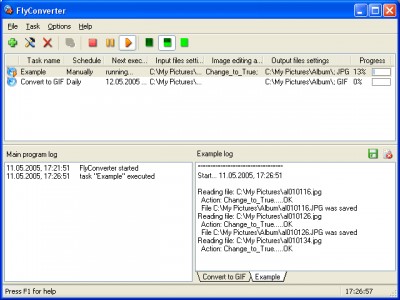
To start processing image files you will need to create a scheduled task for each type of conversion.
An easy four steps wizard will guide you through creating a new task. You will need to specify a task name and schedule in Step 1, conditions for input files in Step 2, optional image editing actions in Step 3 and output image settings in Step 4.
As soon as a task is created all image files stored in a folder defined as "Source folder" in Step 2 will be convertred according to the task settings.
FlyConverter features
Using FlyConverter you can schedule a task to start: Once, Daily, Weekly, Monthly, Continuously and Manually.
Rotate. This action rotates your images on desired degrees both clockwise and counter-clockwise.
Mirror. This action mirrors your images horizontally or vertically.
Crop. If you need just a part of the image, you can crop it. This action allows you to crop images from any edge, crop them from the center.
Resize. This action has been designed to change an image size. You can change width and height separately or at the same time. You can indicate new image size by pixels or percentage from the initial size, keep or ignore aspect.
Canvas size. The action lets you add or remove work space around an existing image. You can crop an image by decreasing the canvas area.
Watermark. This action helps you to apply graphic watermark on your images, for example to protect your copyright. You can indicate its position, opacity level, transparent color and its tolerance.
Text watermark. This action allows you to place a text watermark on your images. You can set its position, opacity level, font parameters and optionally place a name of converted file.
Add border. With this action you can add color border to your images. The form of the border can be rectangle or ellipse. You can place the border inside or outside of your image.
Add shadow. Using the action you can add color shadow to your images. You will need to specify the shadow blur size in pixels and distance that means interval between bottom-right corner of initial image and bottom-right corner of its background.
Color replace. "Original color" is the color that should be changed by "Replacement color". You can indicate both of them pointing RGB code or define the color right from the palette.
Replace background. Using the action you can replace a solid background with a specified image.
Color resolution. You can change number of colors used to present your image. Usually, the less number of colors you choose, the smaller file you can get. Using differing option can improve quality of your images but it will increase the file size.
HVS. The HVS action allows you to change the colour of the picture with the other colour base, using Hue, Saturation and Value (lightness) parameters. Changing saturation turns your picture more colourful. Change of the lightness gives the more realistic effect than the change of the brightness.
Smooth. The smooth filter softens an image, and is useful for retouching. It smooth transitions by averaging the pixels next to the hard edges of defined lines and shaded areas in an image.
Blur. Eliminates noise where significant color transitions occur in an image. Blur filter smooths transitions by averaging the pixels next to the hard edges of defined lines and shaded areas. Tent, Rectangle and Gaussian are different methods used to avarage pixels color.
Sharpen. The Sharpen filter focuses blurry images by increasing the contrast of adjacent pixels.
Detail. The filter will allow you to get more effect than the sharpen filter.
Remove noise. It allows you to remove all groups of isolated pixels. You will be able to specify a number of black or white pixels in each group.
Contour. This is an edge detection filter. Radius describes a quality of result, strength allows you to get more or less effect of the action. In real life applications, this filter can be used to create geographical contour maps.
Brightness, contrast and gamma. This action allows you to adjust brightness, contrast and gamma of an image.
RGB. This action allows you to increase or decrease the amount of Red, Green or Blue color in your image.
CMY. Using the action you can change Cyan, Magenta and Yellow balance of an image.
YCbCr. It will allow you to adjust your image in YCbCr color space.
HLS. The action lets you adjust the hue, lightness, and saturation of your image. Adjusting the hue, or color, represents a move around the color wheel. Adjusting the saturation, or purity of the color, represents a move across its radius.
Limitations
you will be able to process only up to 10 images at a time
tags you can this action your images allows you the action you will your image action allows the color action you using the can indicate will need
Download FlyConverter 1.2
 Download FlyConverter 1.2
Purchase:  Buy FlyConverter 1.2
Similar software
FlyConverter 1.2
FlySoft
FlyConverter will convert and optionally edit your images automatically at a time that is most convenient for you
For example, FlyConverter can select all uncompressed TIF files and convert them to a Group 4 compressed TIFs every hour OR convert JPG images larger than 640 x 480 pixels every day, week and so on.
 ResizeIt 1.1
PDTSoftware
ResizeIt! is a useful tool that allows you to edit, convert, and resize multiple images at once.
 Edit Digi Pictures 1.0
Nikolaus Neusser
Edit Digi Pictures extends the Windows context menu to rotate, resize, rename and convert multiple photos at the same time.
 Image Converter & Resizer 1.2
Fronoh Inc.
Quickly Convert and Resize BMP, JPG, GIF, TIFF and PNG images
Image Converter & Resizer is a tool created to quickly convert and resize images in all popular formats such as: BMP, JPG, GIF, TIFF and PNG.
 Image Format Studio 1.0
McPherran Software
Image Format Studio is a fast, convenient, and powerful tool for converting and resizing images.
 htm2chm 3.0.9.3
Yaroslav Kirillov
htm2chm is a small user-friendly utility for daily use, which allows you to convert both separate HTML pages with images, and the whole websites (for example downloaded with offline browsers) to one CHM file for more convenient storing.
 SaveForm 2.31
Mulgra
SaveForm is an Internet Explorer add-on that offers convenient saving of visited web pages.
 Kamlex Units Converter 1.0
Kamlex
KamLex Convert is the easiest and convenient way to convert any units you want.
 convert image formats master 1.0
xzsoftware
Did you have many images to convert? Convert image formats master can help you to convert many kinds of images formats.
 Smart Graphic Kid 4.5
HiSHARE Inc
Smart Graphic Kid helps you view, edit and convert images.

 39.00
39.00  Shareware
 0K
0K
 Windows Vista

 RSS
RSS